
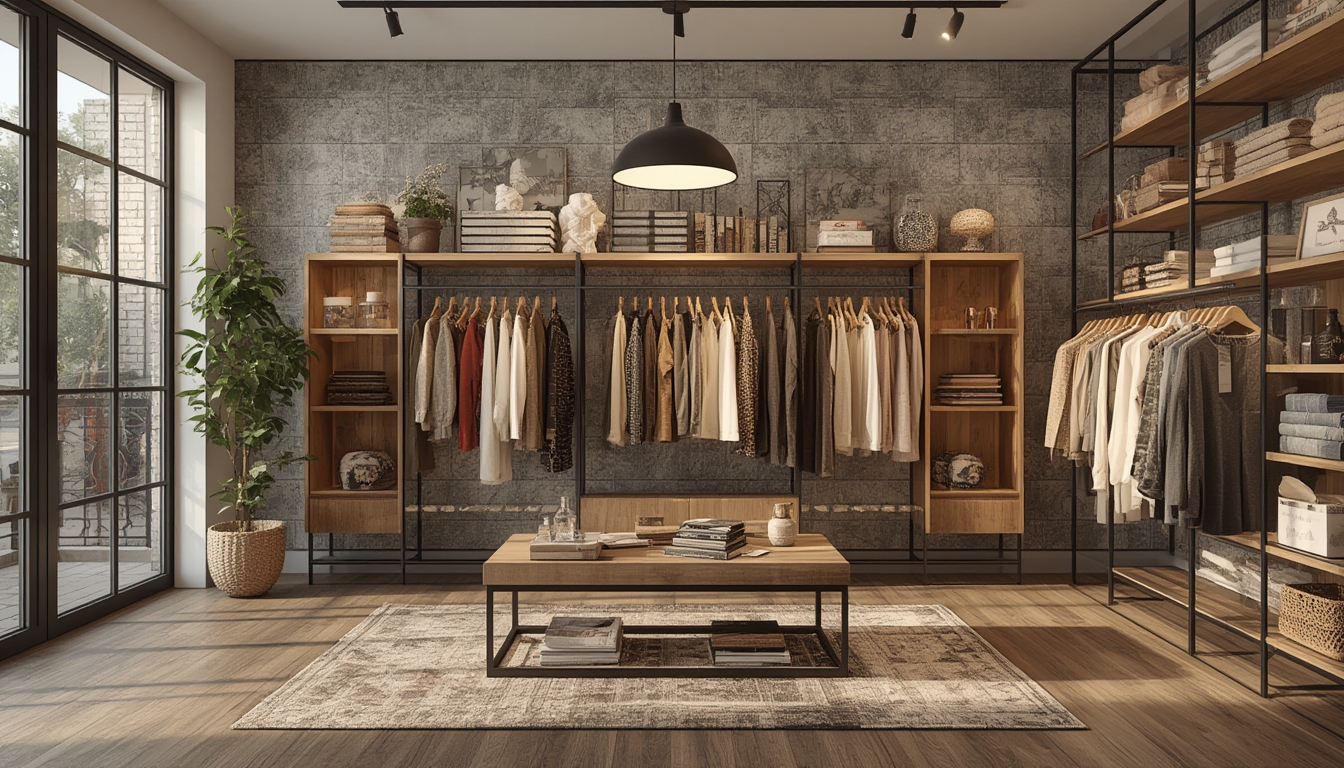
Shop the Look has become a game‑changer for both shoppers and retailers, turning a simple product page into a full‑featured style experience. By presenting a complete outfit or room setting and allowing users to click on each item, you not only boost average order value but also inspire confidence in purchasing decisions. Below is a data‑driven, step‑by‑step guide on how to assemble, restore, and style a “Shop the Look” feature on your WordPress site, complete with tools, actionable tips, and practical advice to ensure success.
Step 1: Gather Your Visual Assets
Why it matters
According to a 2023 Shopify report, product images that showcase a complete look increase conversion rates by up to 45 %. High‑quality visuals are the foundation of any successful Shop the Look implementation.
Tools needed
- DSLR or high‑resolution smartphone camera (minimum 12 MP)
- Tripod for stable shots
- Softbox lighting kit or natural light diffuser
- Photo editing software (Adobe Photoshop, GIMP, or free online editors)
Actionable advice
- Plan the composition. Sketch a quick layout of the outfit or room scene, marking where each product will appear.
- Use consistent lighting. Set up your softbox at a 45‑degree angle to avoid harsh shadows.
- Capture multiple angles. Take at least three shots: a full‑view, a close‑up on key details, and a lifestyle angle with a model or setting.
- Export in sRGB color mode. This ensures colors stay true across browsers and devices.
Step 2: Create Clickable Hotspots
Why it matters
Data from BigCommerce shows that interactive hotspots can increase click‑through rates by 30 % compared to static images.
Tools needed
- WordPress (latest version)
- Plugin: Interactive Image Maps or WPBakery Page Builder with hotspot add‑on
- Image map generator (e.g., image‑map.net)
Actionable advice
- Upload your edited image to the WordPress Media Library.
- Open the image map generator and upload the same file.
- Draw rectangles or circles around each product. Assign a unique ID to each hotspot.
- Copy the generated HTML code and paste it into a
Custom HTMLblock on your page. - Link each hotspot to the corresponding product page using the product’s URL slug.
Step 3: Integrate Product Data Dynamically
Why it matters
Dynamic product data (price, stock, variations) reduces manual updates and keeps the look current. A 2022 Magento study found that automated product feeds cut admin time by 40 %.
Tools needed
- WooCommerce (or any e‑commerce plugin compatible with WordPress)
- WooCommerce REST API (built‑in)
- Code snippet plugin (e.g., Code Snippets)
Actionable advice
- Ensure each product in the look is a published WooCommerce product with a unique SKU.
- Write a small PHP snippet that fetches product data via the REST API based on the hotspot ID.
- Insert the snippet into your theme’s
functions.phpor via the Code Snippets plugin. - Use
data-attributes in your hotspot HTML to store the product ID, then display price and availability with a short JavaScript function that reads the API response.
Step 4: Optimize Mobile Interaction
Why it matters
Mobile traffic now accounts for 58 % of e‑commerce visits (Statista, 2023). Touch‑friendly hotspots are essential for a seamless experience.
Tools needed
- Responsive design testing tool (Chrome DevTools, BrowserStack)
- CSS media queries
Actionable advice
- Set hotspot dimensions in
vw(viewport width) units so they scale with screen size. - Add a
touch-action: manipulation;rule to improve tap responsiveness. - Increase the tap target size to at least 44 × 44 px, per Apple’s Human Interface Guidelines.
- Test on multiple devices (iOS, Android) to ensure hotspots don’t overlap.
Step 5: Add Styling and Visual Cues
Why it matters
Visual cues such as hover effects and icons guide users to interactive elements. A/B tests from Optimizely show a 12 % lift in engagement when hover states are present.
Tools needed
- Custom CSS editor (WordPress Customizer or a child theme stylesheet)
- Icon library (Font Awesome, SVG icons)
Actionable advice
- Apply a subtle
box-shadoworborderon hover to highlight the hotspot. - Insert a small “+” or shopping bag icon at the center of each hotspot using absolute positioning.
- Use a transition of 0.2 s for smooth visual feedback.
- Keep the color palette consistent with your brand to avoid visual clutter.
Step 6: Test Conversion Flow
Why it matters
Data‑driven iteration is key. A 2021 Baymard Institute analysis found that 70 % of shoppers abandon carts due to friction in the checkout path.
Tools needed
- Google Analytics (or alternative analytics platform)
- Heatmap tool (Hotjar, Crazy Egg)
- Conversion funnel setup in your analytics dashboard
Actionable advice
- Set up an event in Google Analytics to track clicks on each hotspot.
- Create a funnel: Hotspot Click → Product Page → Add to Cart → Checkout.
- Review heatmaps to see if users are missing any hotspots.
- Adjust hotspot size or placement based on drop‑off points, then retest.
Step 7: Maintain and Refresh the Look
Why it matters
Fashion and interior trends evolve quickly. A fresh look every 4–6 weeks can increase repeat visits by up to 20 % (Shopify, 2022).
Tools needed
- Content calendar (Google Calendar, Trello)
- Image editing software for quick updates
- Version control (Git) for tracking changes to code snippets
Actionable advice
- Schedule a quarterly audit to replace outdated products or out‑of‑stock items.
- Keep a backup of each look’s image map file for quick edits.
- Use Git to commit changes to your
functions.phpor CSS files, allowing rollback if needed. - Notify your email list when a new Shop the Look is live to drive traffic.
Step 8: Leverage User‑Generated Content (UGC)
Why it matters
UGC adds authenticity. A 2020 Nielsen study found that 92 % of consumers trust peer recommendations over brand messaging.
Tools needed
- UGC collection plugin (e.g., Instagram Feed)
- Hashtag tracking tool (Later, Sprout Social)
Actionable advice
- Encourage customers to share their own “Shop the Look” photos using a branded hashtag.
- Curate the best images and embed them in a carousel below the main look.
- Link each UGC photo back to the product page to create a secondary conversion path.
- Periodically rotate UGC to keep the page dynamic and fresh.
Final Checklist
- High‑resolution, well‑lit images captured and edited.
- Clickable hotspots created and linked to product URLs.
- Dynamic product data fetched via WooCommerce API.
- Responsive design tested on mobile devices.
- Hover/tap visual cues added for better UX.
- Analytics events and funnel set up for conversion tracking.
- Content calendar scheduled for regular updates.
- UGC integrated to boost authenticity.
By following these data‑backed steps, you’ll transform a simple product showcase into an immersive shopping experience that guides visitors from inspiration to purchase. The result is higher engagement, increased average order value, and a stronger brand connection—all without the need for complex custom development.
