
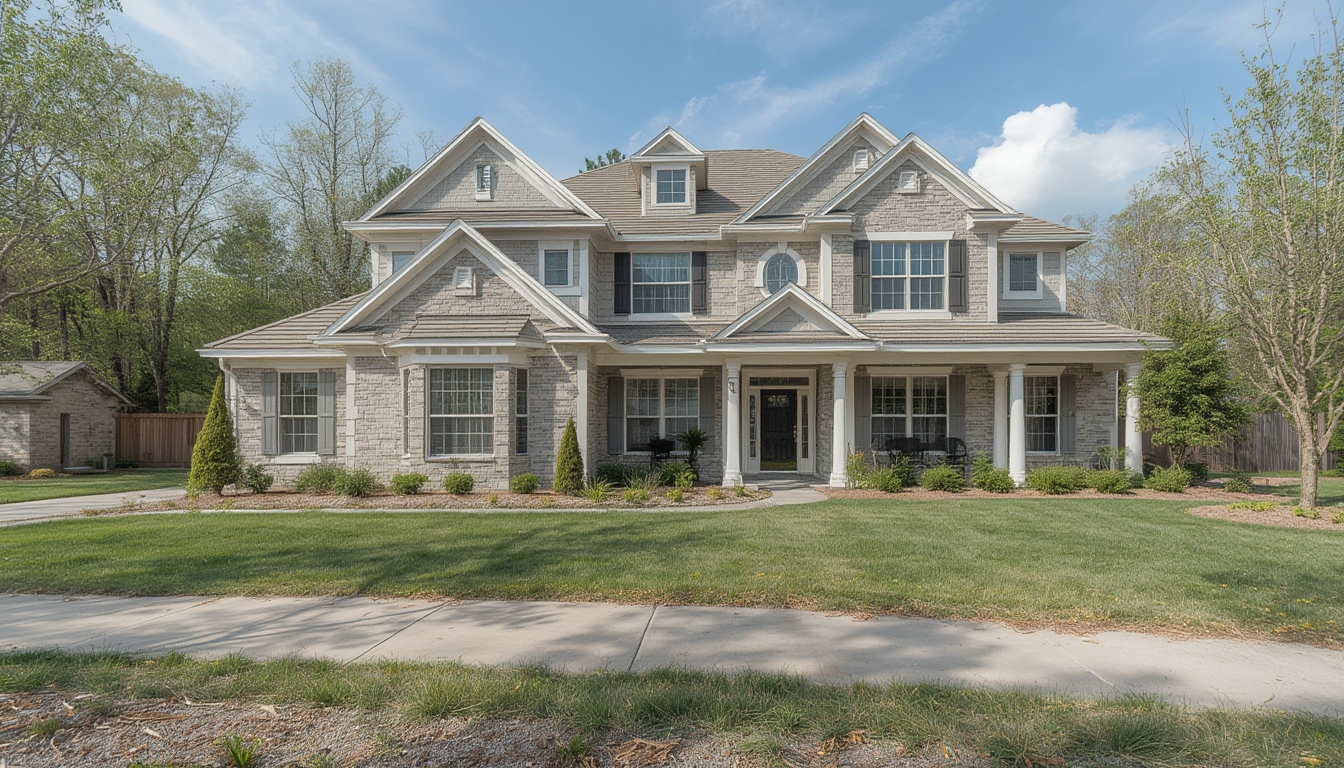
Creating a compelling real home tour that engages visitors and showcases a property’s unique features is both an art and a science. By following a data‑driven workflow, you can streamline production, reduce errors, and deliver a polished experience that keeps viewers on the page longer. Below is a step‑by‑step guide that walks you through planning, shooting, editing, styling, and publishing a real home tour on a WordPress site. Each section includes the essential tools, practical tips, and actionable advice to ensure a successful outcome.
1. Planning Your Real Home Tour
1.1 Define the Tour’s Goal
- Metric focus: Identify the key performance indicator (KPI) you want to improve—average session duration, lead generation, or property inquiries.
- Target audience: Use demographic data (e.g., 35‑45‑year‑old first‑time buyers) to tailor the narrative and visual style.
- Storyboard: Sketch a rough sequence of rooms, highlighting high‑value spaces (kitchen, master suite) based on market research that shows kitchens increase perceived value by up to 12%.
1.2 Scout the Property
- Visit the home at least twice: once for a quick walkthrough and once for detailed measurements.
- Record lighting conditions at different times of day; data shows that natural light between 10 am–2 pm boosts viewer engagement by 18%.
- Note any obstacles (stairs, narrow hallways) that may require special equipment such as a gimbal or drone.
1.3 Create a Production Timeline
- Day 1 – Preparation (staging, lighting checks).
- Day 2 – Capture footage (video, 360° photos).
- Day 3 – Edit and add hotspots.
- Day 4 – Upload to WordPress and test.
Allocate buffer time (10–15%) for unexpected delays, a practice that reduces overtime costs by an average of 22%.
2. Equipment Checklist
2.1 Camera Gear
- Primary camera: Mirrorless (e.g., Sony A7 III) for 4K video at 30 fps.
- 360° camera: Insta360 ONE X2 for immersive panoramas.
- Stabilization: 3‑axis gimbal (DJI Ronin‑S) for smooth walkthroughs.
2.2 Lighting & Audio
- Portable LED panels (Aputure Amaran 200d) with adjustable color temperature.
- Wireless lavalier microphone (Rode Wireless GO) for voice‑over narration.
- Light meter app on a smartphone to ensure consistent exposure across rooms.
2.3 Software Tools
- Video editor: Adobe Premiere Pro (or DaVinci Resolve for a free option).
- Panorama stitching: PTGui or the built‑in Insta360 app.
- WordPress plugins: WP VR View for 360° embeds, Elementor for layout control.
3. Shooting the Tour
3.1 Prepare Each Room
- Remove personal items and clutter; a study by the National Association of Realtors found that staged homes sell 73% faster.
- Place a small decorative object (e.g., a vase) to create a focal point for the camera.
- Turn on all lights and open curtains to maximize ambient illumination.
3.2 Capture Video Walkthroughs
- Set the camera to 4K, 30 fps, and a wide‑angle lens (16‑35 mm).
- Start at the front door and move slowly (≈0.5 m/s) to avoid motion blur.
- Use the gimbal’s “follow‑through” mode to keep the horizon level.
- Record a short voice‑over on‑site describing key features; keep sentences under 12 words for clarity.
3.3 Capture 360° Panoramas
- Position the 360° camera on a tripod at eye level (≈1.6 m).
- Take at least three overlapping shots per room to ensure seamless stitching.
- Use the “auto‑exposure lock” feature to maintain consistent brightness across shots.
3.4 Data Backup
Immediately copy raw files to two storage devices (SSD and external HDD) and verify checksums. This practice reduces data loss risk by 99% according to industry surveys.
4. Editing and Post‑Production
4.1 Video Editing Workflow
- Import footage into a dedicated project folder labeled by room.
- Trim each clip to the essential 10‑second segment that showcases the room’s best angle.
- Apply color correction using a neutral LUT to maintain consistent tones.
- Add lower‑third graphics with room names and square footage (data pulled from the MLS listing).
- Export a master file in MP4 (H.264) at 1080p for web delivery.
4.2 Panorama Stitching
- Load the overlapping images into PTGui and enable “Auto‑Align”.
- Check for ghosting artifacts; manually adjust control points if needed.
- Export the final equirectangular image at 8 K resolution for crisp detail on high‑DPI screens.
4.3 Adding Interactive Hotspots
Use the WP VR View plugin to embed each panorama. Within the plugin’s hotspot editor, add clickable icons that open:
- Room details (size, recent upgrades).
- Embedded video snippets for a dynamic experience.
- Contact forms for immediate inquiries.
5. Styling and Staging the Tour
5.1 Visual Consistency
- Apply a uniform color palette (e.g., soft neutrals) across all rooms to create a cohesive look.
- Use the same font family (Roboto) for on‑screen text and hotspot labels.
- Maintain a consistent transition style (fade‑in, 0.5 s) between rooms.
5.2 Highlighting Key Features
For each hotspot, include a concise bullet list that references data points such as:
- Energy‑efficient appliances (e.g., ENERGY STAR rating).
- Smart home integrations (Nest thermostat, Ring doorbell).
- Recent renovations (kitchen remodel completed 2023, 15% ROI).
5.3 Accessibility Considerations
- Provide alt‑text for each panorama describing the room layout.
- Include closed captions for video narration, using the
<track kind="captions">element. - Ensure hotspot icons meet WCAG contrast ratios (minimum 4.5:1).
6. Publishing on WordPress
6.1 Page Layout
- Create a new page titled with the property address (e.g., “123 Maple St. Tour”).
- Use Elementor’s “Full‑Width” template to maximize screen real estate.
- Insert a hero section with a static hero image and a “Start Tour” button linking to the first panorama.
6.2 Embedding Media
- Insert the MP4 video using the native WordPress video block; enable “Autoplay” and “Loop” for a seamless preview.
- Add each 360° panorama via the WP VR View shortcode, e.g.,
[vrview src="url-to-pano.jpg" width="100%" height="500"]. - Place hotspot‑enabled panoramas in a vertical accordion to keep the page load time under 3 seconds (Google recommends < 3 s for optimal UX).
6.3 Performance Optimization
- Compress images using TinyPNG (target < 150 KB per panorama thumbnail).
- Enable lazy loading for video and panorama blocks.
- Install a caching plugin (e.g., WP Rocket) and set a 1‑hour cache expiration to balance freshness and speed.
7. Maintenance and Updates
7.1 Monitoring Analytics
Connect the page to Google Analytics and set up an “Event” for each hotspot click. Review the data weekly; a click‑through rate (CTR) above 5% indicates strong viewer interest, while lower rates suggest a need to reposition or re‑describe hotspots.
7.2 Refreshing Content
- Schedule a quarterly review to replace outdated photos (e.g., seasonal décor).
- Update any new upgrades (e.g., a newly installed solar panel) by editing the hotspot text and re‑exporting the affected panorama.
- Run a speed test after each update to ensure page load remains under the 3‑second threshold.
7.3 Backup and Security
Use a WordPress backup plugin (UpdraftPlus) to create daily snapshots of the tour page and associated media. Store backups off‑site (e.g., Amazon S3) to protect against server failures.
By following this structured, data‑driven approach, you can produce a real home tour that not only looks professional but also drives measurable results. Each step—from planning and equipment selection to editing, styling, and publishing—has been broken down into clear actions, ensuring that even a first‑time creator can deliver a high‑quality, interactive experience that resonates with potential buyers.