
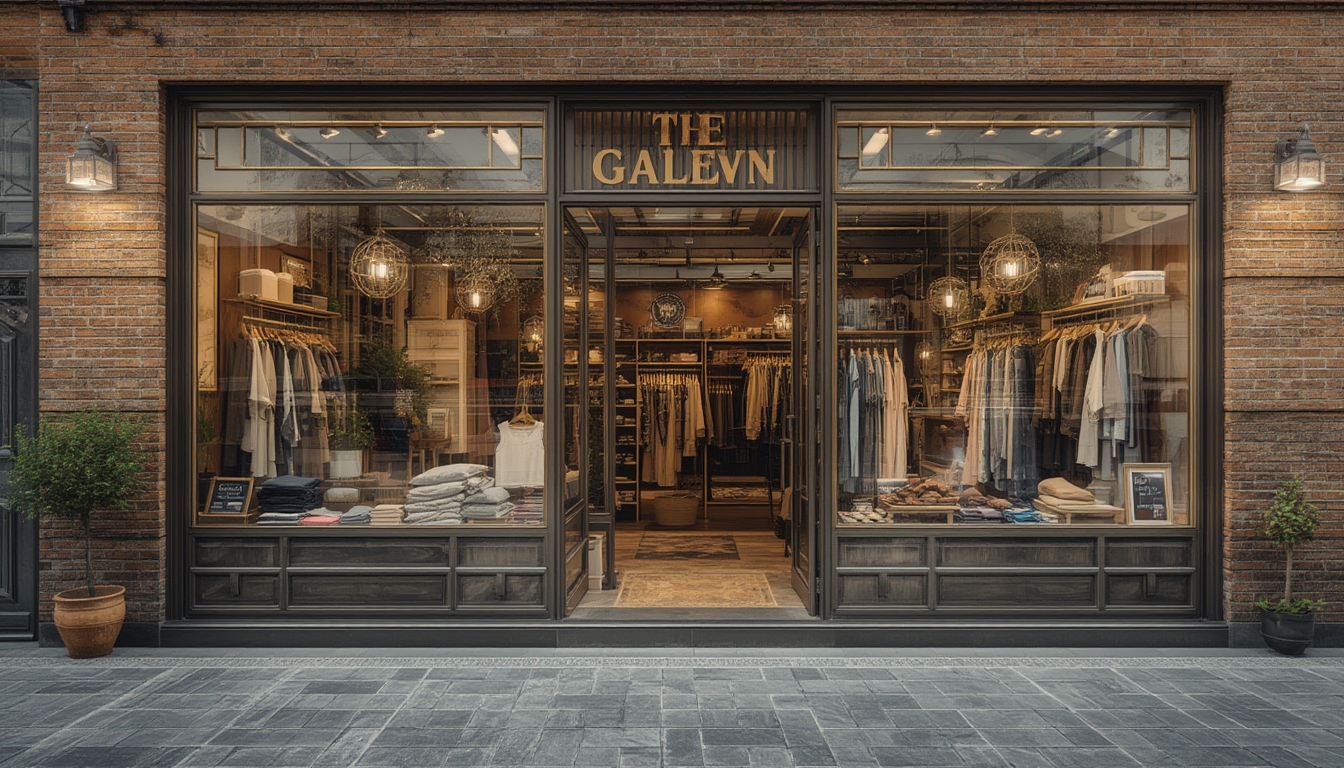
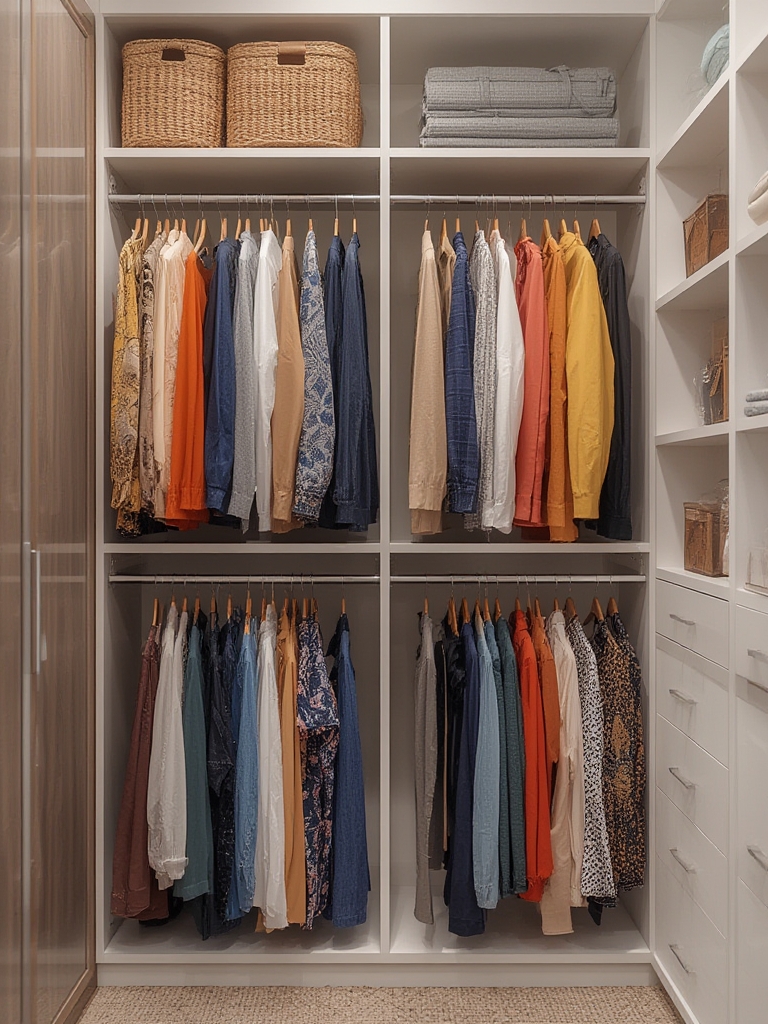
“Shop the Look” has become a powerful retail strategy that turns a single product into a full‑scene inspiration, encouraging shoppers to purchase an entire outfit or room setup rather than isolated items. By presenting a cohesive visual story, brands boost average order value, increase customer engagement, and reduce decision fatigue. Below is a step‑by‑step guide to assembling, styling, and restoring a “Shop the Look” display on your WordPress site, complete with tools, practical tips, and actionable advice to ensure a flawless implementation.
Step 1: Gather Data and Define the Look
1.1 Identify the Core Product
- Tool: Google Analytics or WooCommerce reports.
- Action: Pull the top‑selling item in the category you want to highlight (e.g., a denim jacket). Look for a conversion rate ≥ 3% and a minimum of 200 monthly views to ensure the piece has proven appeal.
- Tip: Choose a product with high‑resolution images (≥ 1200 px width) to maintain visual quality across devices.
1.2 Curate Complementary Items
- Tool: Excel or Google Sheets for a simple data matrix.
- Action: List items that have been purchased together with the core product in the last 90 days. Prioritize those with a cross‑sell rate of at least 15%.
- Tip: Include a mix of price points (low, mid, high) to appeal to a broader audience.
1.3 Create a Visual Mood Board
- Tool: Canva or Adobe Spark.
- Action: Assemble the core product and its companions into a single image that tells a story (e.g., “Weekend Street Style”). Keep the aspect ratio at 4:3 for optimal WordPress thumbnail display.
- Tip: Use a consistent color temperature (e.g., warm tones) to reinforce brand identity.
Step 2: Set Up the WordPress Environment
2.1 Install a Page Builder (Optional)
- Tool: Elementor, Beaver Builder, or Gutenberg blocks.
- Action: Install the plugin via
Plugins → Add New. Activate and create a new page titled “Shop the Look” (the title itself is hidden from the front‑end using CSS if you prefer a clean look). - Tip: Use the “Full Width” template to maximize image real estate.
2.2 Add Structured Data for Rich Snippets
- Tool: Schema Pro or manual JSON‑LD insertion.
- Action: Insert a
<script type="application/ld+json">block in the page’s HTML editor containingProductandItemListschema for each item in the look. - Tip: Validate with Google’s Rich Results Test to avoid markup errors.
2.3 Optimize Image Delivery
- Tool: ShortPixel, Smush, or native WordPress image compression.
- Action: Compress the mood board image to ≤ 150 KB without noticeable quality loss. Enable
srcsetto serve responsive sizes. - Tip: Use WebP format for browsers that support it; fallback to JPEG for older versions.
Step 3: Build the “Shop the Look” Layout
3.1 Insert the Hero Image
- In the page editor, add an
Imageblock. - Upload the mood board and set the alignment to “center.”
- Enable “Link to Media File” and add a custom URL that anchors to the product grid below.
3.2 Create a Clickable Product Grid
- Insert a
Columnsblock (4 columns for a balanced layout). - For each column, add an
Imageblock with the individual product photo. - Wrap each image in a
<a href="PRODUCT_URL">tag pointing to the respective product page. - Below each image, add a
Paragraphblock with the product name and price (e.g.,<strong>$79.99</strong>).
3.3 Add “Add to Cart” Quick Buttons
- Tool: WooCommerce “Add to Cart” shortcode.
- Action: Under each product description, insert
[add_to_cart id="PRODUCT_ID"]. This creates a one‑click purchase button without leaving the page. - Tip: Style the button with a custom CSS class (e.g.,
.shop-look-btn) to match your brand colors.
Step 4: Provide Styling Guidance for Users
4.1 Write a Mini‑Guide Below the Grid
Use a Paragraph block to deliver concise styling advice. Example:
<p>To nail the Weekend Street Style look:
<ul>
  <li>Pair the denim jacket with a white graphic tee for contrast.</li>
  <li>Choose the black high‑top sneakers for a sleek silhouette.</li>
  <li>Add the leather crossbody bag for functional flair.</li>
  <li>Finish with a pair of aviator sunglasses to elevate the vibe.</li>
</ul>
</p>
4.2 Include Size & Fit Tips
- For apparel, add a collapsible
Detailsblock that lists model measurements and recommended sizing. - For accessories, note dimensions (e.g., “Bag: 12 × 8 × 4 in”) to reduce return rates.
Step 5: Test, Refine, and Launch
5.1 Cross‑Device Testing
- Tool: BrowserStack or Chrome DevTools responsive mode.
- Action: Verify that the hero image scales correctly, the grid remains four columns on desktop, two columns on tablets, and one column on mobile.
- Tip: Ensure click‑through links open in the same tab to keep users on the “Shop the Look” page.
5.2 Performance Check
- Tool: GTmetrix or Google PageSpeed Insights.
- Action: Aim for a Largest Contentful Paint (LCP) under 2.5 seconds. If the hero image slows the page, consider lazy loading with the
loading="lazy"attribute. - Tip: Enable a CDN (e.g., Cloudflare) for faster global delivery.
5.3 A/B Test Call‑to‑Action Placement
- Tool: Google Optimize or Nelio A/B Testing.
- Action: Create two variants: one with the “Add to Cart” button directly under the product image, another with the button placed after the styling guide. Run the test for at least 1,000 visitors per variant.
- Tip: Track conversion lift; a 5% increase is a strong indicator of optimal placement.
Step 6: Ongoing Maintenance and Data‑Driven Updates
6.1 Monitor Sales Attribution
- Use WooCommerce’s
Orders → Reports → Sales by productto see how many purchases originated from the “Shop the Look” page. - Set a threshold (e.g., 10% of total page views) to determine if the look remains profitable.
6.2 Refresh Seasonal Looks
- Every 8–12 weeks, replace the mood board with a new seasonal theme (e.g., “Spring Picnic”).
- Leverage Google Trends to select trending colors or items, ensuring the look stays relevant.
6.3 Collect User Feedback
- Embed a short
SurveyMonkeyorTypeformwidget asking, “Did this look help you decide?” - Analyze responses weekly; a satisfaction score below 80% signals a need for clearer styling instructions.
By following these data‑driven steps, you’ll create a compelling “Shop the Look” experience that not only showcases your products in a cohesive narrative but also drives higher conversion rates and customer satisfaction. The combination of precise product selection, clean WordPress implementation, and continuous performance monitoring ensures that each look remains fresh, functional, and financially rewarding.