
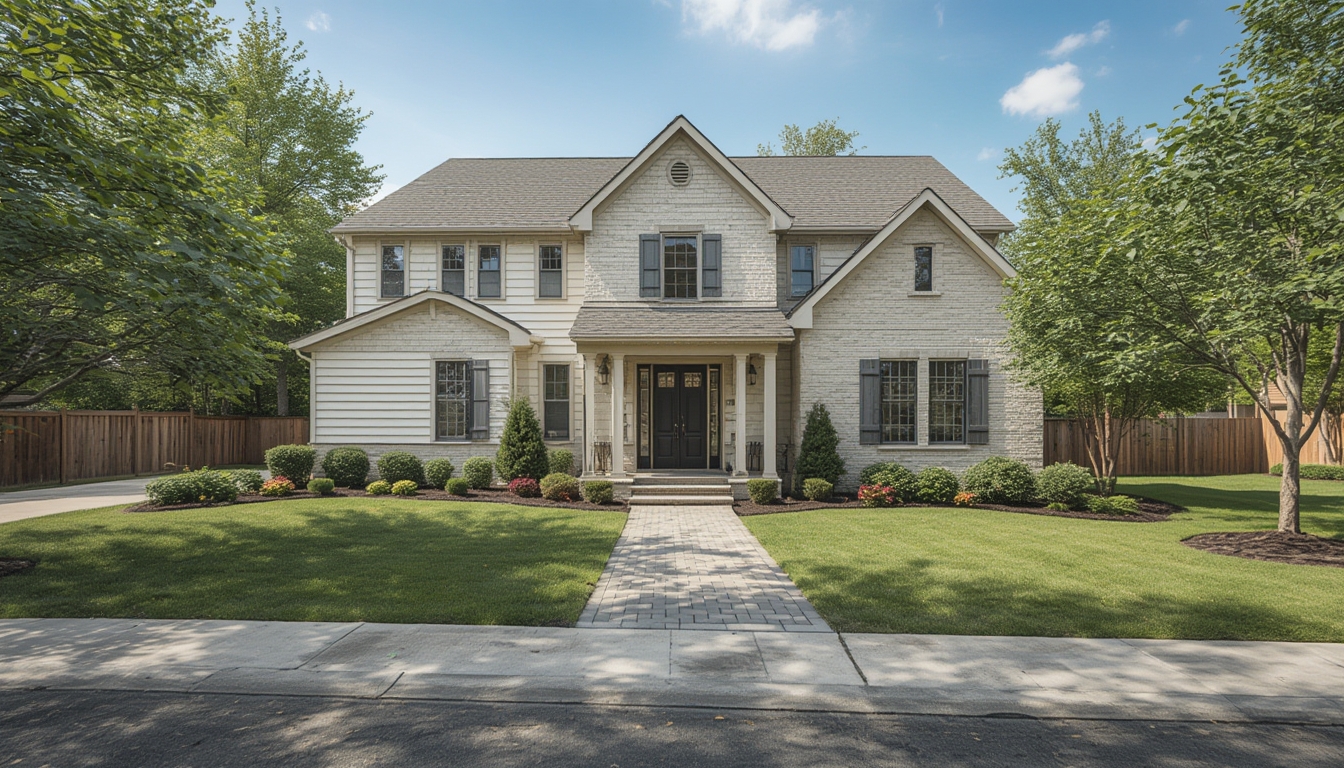

Real home tours have become a powerful way for homeowners, real‑estate agents, and interior designers to showcase spaces in an immersive, authentic manner. Whether you’re creating a brand‑new virtual walkthrough, breathing new life into older footage, or adding a polished style to an existing tour, a systematic approach will save time, reduce frustration, and deliver a professional result that resonates with viewers.
Step 1: Planning the Real Home Tour
Define the Goal and Audience
- Goal: Decide if the tour is for sale listings, design portfolios, rental promotions, or simply a personal showcase.
- Audience: Identify who will watch—buyers, renters, design enthusiasts, or investors—and tailor the narrative accordingly.
- Key Messages: List the three most important selling points (e.g., natural light, open floor plan, unique architectural details).
Create a Shot List
Break the property down room by room and note the specific angles you need:
- Entryway – wide‑angle to set the scene.
- Living area – focus on flow and focal points.
- Kitchen – capture countertops, appliances, and storage.
- Bedrooms – emphasize space and comfort.
- Bathrooms – highlight fixtures and finishes.
- Outdoor spaces – show landscaping, patio, or view.
Mark any architectural features (e.g., exposed beams, built‑in shelving) that deserve extra attention.
Schedule and Logistics
- Choose a day with natural light that complements the home’s orientation.
- Coordinate with occupants to clear clutter and arrange furniture for optimal flow.
- Plan for a 30‑minute buffer for lighting adjustments and equipment setup.
Step 2: Assembling the Equipment
Essential Hardware
| Item | Why It Matters |
|---|---|
| 360° Camera (e.g., Ricoh Theta Z1) | Captures seamless panoramas for immersive navigation. |
| Tripod with Fluid Head | Ensures stable, smooth pans and tilts. |
| External Microphone (Shotgun or Lapel) | Provides clear narration or ambient sound. |
| Lighting Kit (LED panels, softboxes) | Balances shadows in darker rooms. |
| Smartphone or Tablet | Acts as a remote viewfinder and control surface. |
Software Tools
- Capture App: Use the manufacturer’s mobile app to trigger shots and adjust exposure on the fly.
- Stitching Software: Adobe Lightroom, PTGui, or the camera’s native editor to merge overlapping images.
- Editing Suite: Adobe Premiere Pro, Final Cut Pro, or DaVinci Resolve for video polishing.
- Hosting Platform: Matterport, Kuula, or a self‑hosted WordPress plugin (e.g., WP VR View) to embed the tour.
Quick Setup Checklist
- Charge all batteries and pack spare power banks.
- Format SD cards (minimum 64 GB, UHS‑II recommended).
- Calibrate white balance using a gray card.
- Test microphone levels with a short voice recording.
- Place the tripod at eye level (≈5′–5′ ½) for a natural perspective.
Step 3: Capturing the Tour
Lighting Best Practices
- Turn on all interior lights to reduce high‑contrast shadows.
- Use diffused natural light when possible; open curtains and blinds.
- For dark corners, add a portable LED panel set to 3000 K for warm tones.
Camera Settings for Consistency
- Resolution: Shoot at the highest native resolution (e.g., 8 K for 360° cameras).
- ISO: Keep ISO low (100–400) to minimize grain.
- Aperture: Use f/2.8–f/4 for a balanced depth of field.
- Shutter Speed: Match the frame rate (e.g., 1/30 s for 30 fps video).
Step‑by‑Step Capture Routine
- Start at the front door; record a brief spoken welcome.
- Move clockwise through each room, pausing 2–3 seconds at key points.
- For each room, perform a slow 360° pan, then a vertical tilt to capture ceiling details.
- Record ambient sound for 5 seconds in each space; this adds realism during playback.
- End the tour back at the entrance, summarizing the property’s highlights.
Step 4: Restoring Existing Footage
Assessing the Raw Material
Import all files into a dedicated project folder. Separate video clips, still panoramas, and audio tracks. Flag any footage with:
- Exposure issues (over‑ or under‑exposed areas).
- Color shifts caused by mixed lighting.
- Stabilization problems (camera shake).
Color Correction Workflow
- Apply a primary correction using the “Lift‑Gamma‑Gain” controls to balance shadows, midtones, and highlights.
- Use a “White Balance” picker on a neutral surface (e.g., a white wall) to neutralize color casts.
- Match the look across all rooms by copying the correction settings from the best‑looking clip and pasting them onto the others.
- Fine‑tune saturation and vibrance to keep colors natural but vivid.
Stabilization and Noise Reduction
- In DaVinci Resolve, enable the “Stabilizer” effect and set “Smooth” to “Medium.”
- Apply “Temporal Noise Reduction” with a low threshold to preserve detail while smoothing grain.
- Render a short test segment to verify that motion remains fluid.
Audio Cleanup
Use Audacity or the audio panel in your editing suite:
- Run a “Noise Profile” on a silent segment and apply “Noise Reduction” (‑12 dB recommended).
- Normalize narration tracks to –3 dB for consistent volume.
- Layer ambient room sounds at a low level (‑18 dB) to add depth without distracting the viewer.
Step 5: Styling the Final Tour
Adding Navigation Hotspots
Most hosting platforms let you place clickable hotspots that move the viewer from one room to the next. Follow these steps:
- Upload the stitched panoramas to the platform.
- Enter “Edit Mode” and click on the edge of a room where the next space begins.
- Drag a hotspot icon onto that spot and link it to the target panorama.
- Label each hotspot with a concise title (e.g., “Kitchen”) for accessibility.
Incorporating Text Overlays and Call‑outs
- Use a clean sans‑serif font (e.g., Open Sans, 24 pt) for readability.
- Highlight key features with a semi‑transparent background (opacity 70 %).
- Limit each overlay to one sentence to avoid clutter.
Background Music and Mood
Select royalty‑free tracks that match the property’s vibe—light acoustic for a cozy cottage, modern synth for a sleek condo. Keep the music volume below –20 dB so narration remains dominant.
Export Settings for Web Delivery
| Parameter | Recommended Value |
|---|---|
| Resolution | 3840 × 1920 (4K) for 360° video; 1920 × 1080 for standard clips |
| Codec | H.264 (Main Profile) or H.265 for smaller file size |
| Bitrate | 15–20 Mbps for 4K, 8–10 Mbps for 1080p |
| Frame Rate | 30 fps (consistent throughout) |
| Audio | AAC, 48 kHz, 192 kbps |
Embedding the Tour in WordPress
- Install a VR/360° plugin (e.g., “WP VR View” or “Matterport Embed”).
- Copy the embed code provided by your hosting platform.
- In the WordPress editor, add a “Custom HTML” block and paste the code.
- Preview the page on desktop and mobile to confirm responsiveness.
- Publish and test the navigation flow with a fresh browser session.
Step 6: Actionable Tips for Ongoing Success
Maintain a Consistent Brand Look
Save a style guide that includes your chosen font, color palette for overlays, and logo placement. Apply it to every new tour to reinforce brand identity.
Schedule Regular Updates
Properties evolve—new furniture, seasonal décor, or renovations. Re‑capture key rooms every 6–12 months and replace the old panoramas to keep the tour current.
Collect Viewer Feedback
- Enable a short post‑tour survey (Google Forms or Typeform) linked at the end of the experience.
- Track metrics such as average watch time and hotspot click‑through rates to identify weak spots.
- Use the data to refine future shot lists and improve navigation flow.
Backup All Raw Files
Store original footage on an external SSD and a cloud service (e.g., Google Drive or Backblaze). A reliable backup ensures you can revisit the material for future edits or repurposing.
By following this structured workflow—from meticulous planning and precise equipment assembly to thoughtful restoration and polished styling—you’ll produce real home tours that feel authentic, engaging, and professionally crafted. The result is a compelling visual narrative that not only showcases a space but also drives interest, inquiries, and ultimately, conversions.
